Guides · 5 min read · 10 July 2026
How to Edit Canva Invitation Templates in 10 Minutes
A practical walkthrough for personalising names, dates, colours, and export settings in any Eden Delight Canva invitation — without design overwhelm.
Digital invitation templates are meant to save time, not create a second design project. Still, many people open a Canva link and freeze — unsure which boxes are safe to touch, which fonts should stay, and how to export without blurry text. This guide walks you through a calm, repeatable process you can finish in about ten minutes, whether you are preparing a wedding suite, a baby shower card, or a festive mehndi invite.
Whether you bought a baby shower invite, a floral wedding suite, or a mehndi night card, the editing logic is the same. Treat the template as a flexible frame: keep the structure, swap the details, then export for the way your guests will actually receive it. The goal is to make the card feel unmistakably yours while protecting the balance a designer already refined.
Before you start, gather everything you need on one note: full names as you want them printed, exact date and time, venue name and address, dress code if any, and the RSVP method with a clear deadline. Ready details prevent mid-edit pauses that stretch ten minutes into an evening of second-guessing.
Open the template the right way
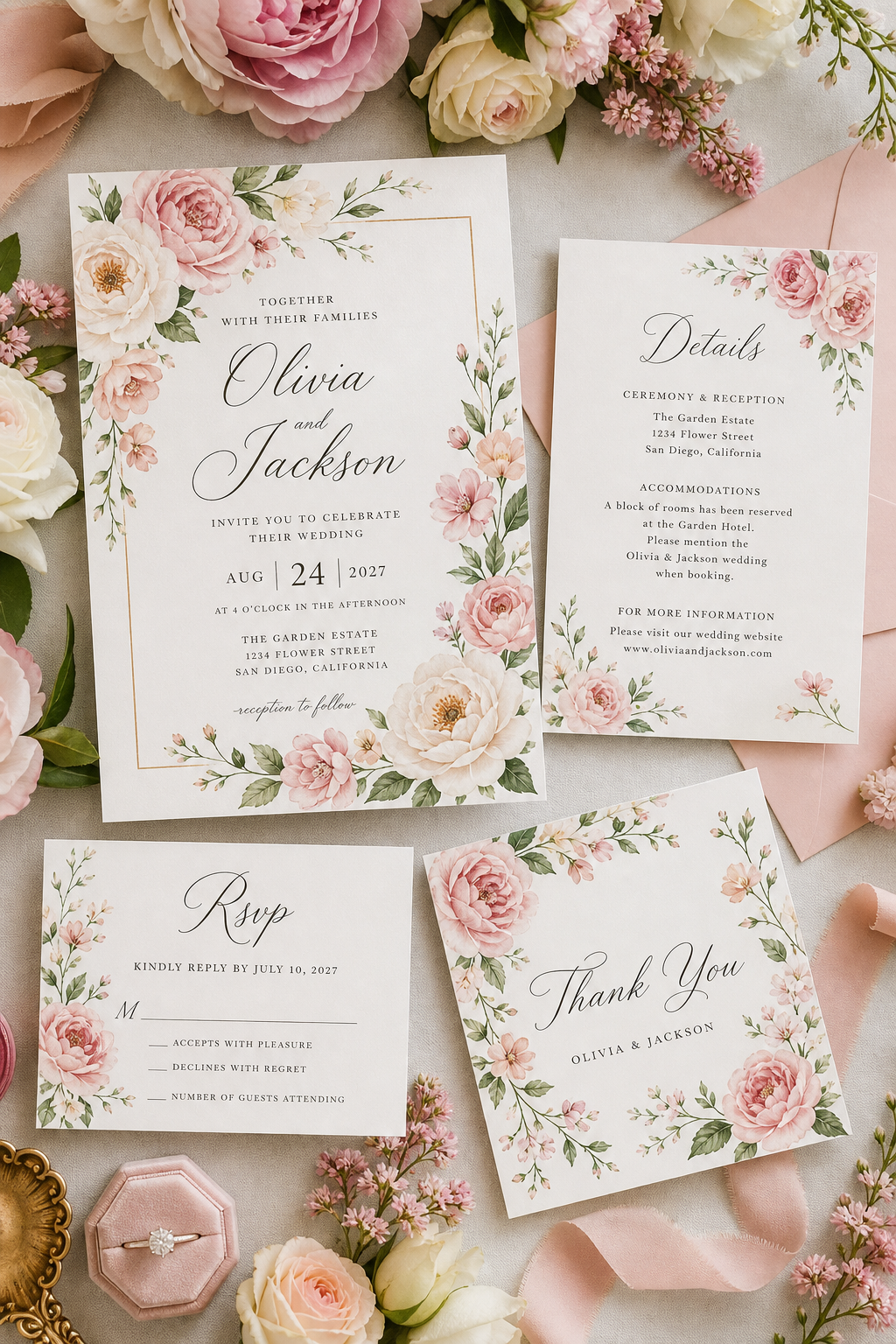
Start from the download email or file note that came with your Eden Delight purchase. Click the Canva link and choose “Use template for new design” if prompted. A free Canva account is enough for most text and colour edits. If the file includes multiple pages — invitation, details card, RSVP — keep them together so your suite stays consistent across every piece guests might see.
Before changing anything, duplicate the design. That single click is insurance. You can experiment freely, knowing the original layout is one version away. Rename your copy with the event name and date so you can find it later among other projects. If you are co-editing with a partner or planner, share the duplicate rather than the master so nobody accidentally overwrites the clean starting point.
Zoom out once and look at the full page before you touch a single text box. Notice where the eye lands first, which elements are decorative, and which are informational. That quick scan helps you avoid moving ornamental flourishes that only look “wrong” until the real names are in place.
Edit text without breaking the layout
Click into each text box and replace placeholder copy with your real details: host names, honouree, date, time, venue, and RSVP method. Resist the urge to stretch boxes wider to fit long sentences. Instead, shorten the wording or reduce font size slightly so the composition stays balanced. Templates are designed around a visual rhythm; long lines that spill into floral borders usually look rushed.
Long venue names are the usual troublemaker. Split an address across two lines rather than shrinking everything to unreadability. Keep hierarchy clear: the celebration title can stay largest, while logistics sit a step smaller. Guests should understand the “what” in one glance and the “where/when” in the next. If you need bilingual lines, place the second language in a smaller size beneath the first rather than cramming both into one oversized block.
- Update names and date first — they drive every other decision.
- Keep RSVP instructions short and specific (date + WhatsApp/email).
- Avoid mixing more than two font styles unless the template already does.
- Check spelling twice; digital invites get forwarded as screenshots.
- Leave comfortable margins so text never kisses the edge of the card.
- Preview on mobile early so you catch cramped lines before export.
Match colours to your celebration
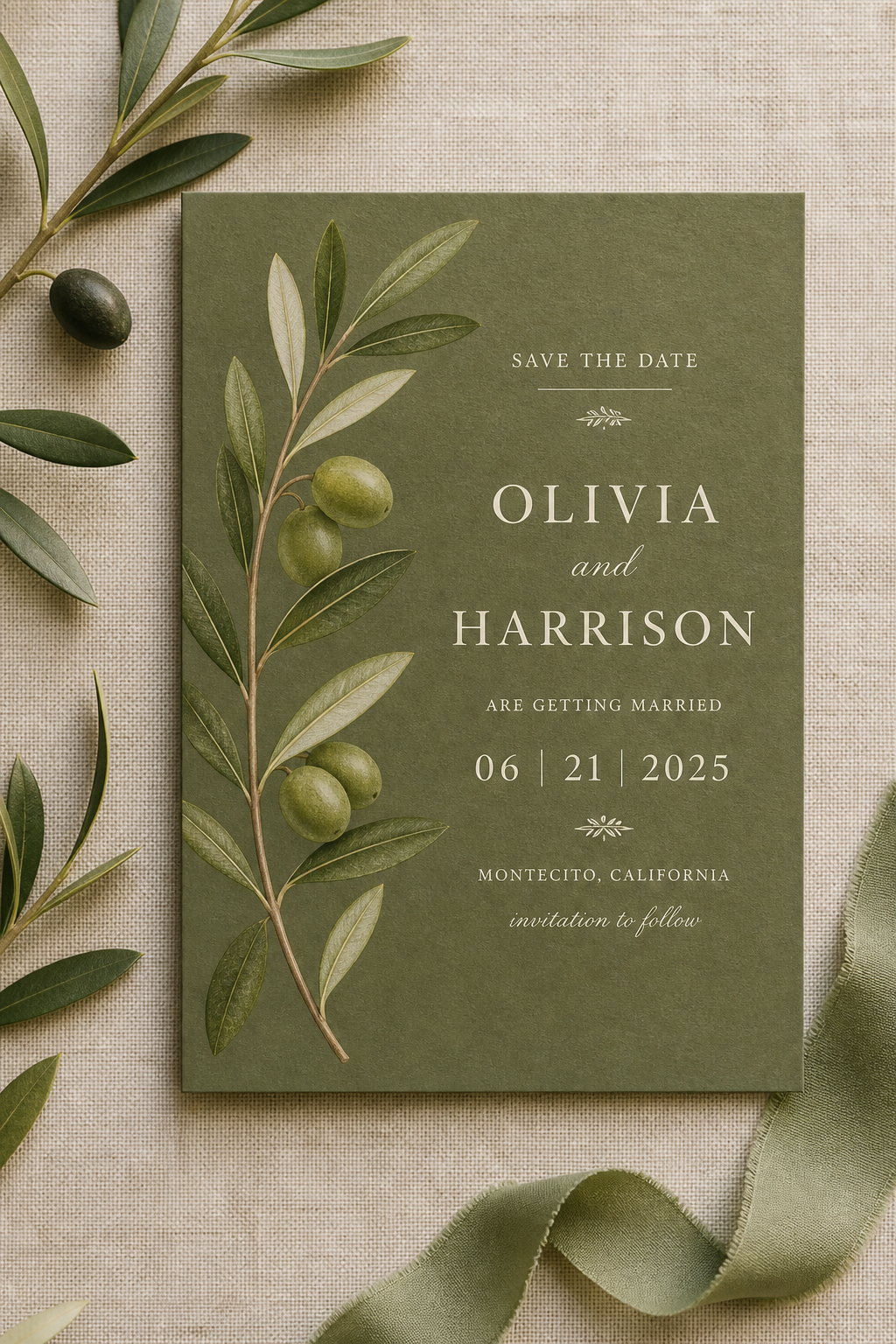
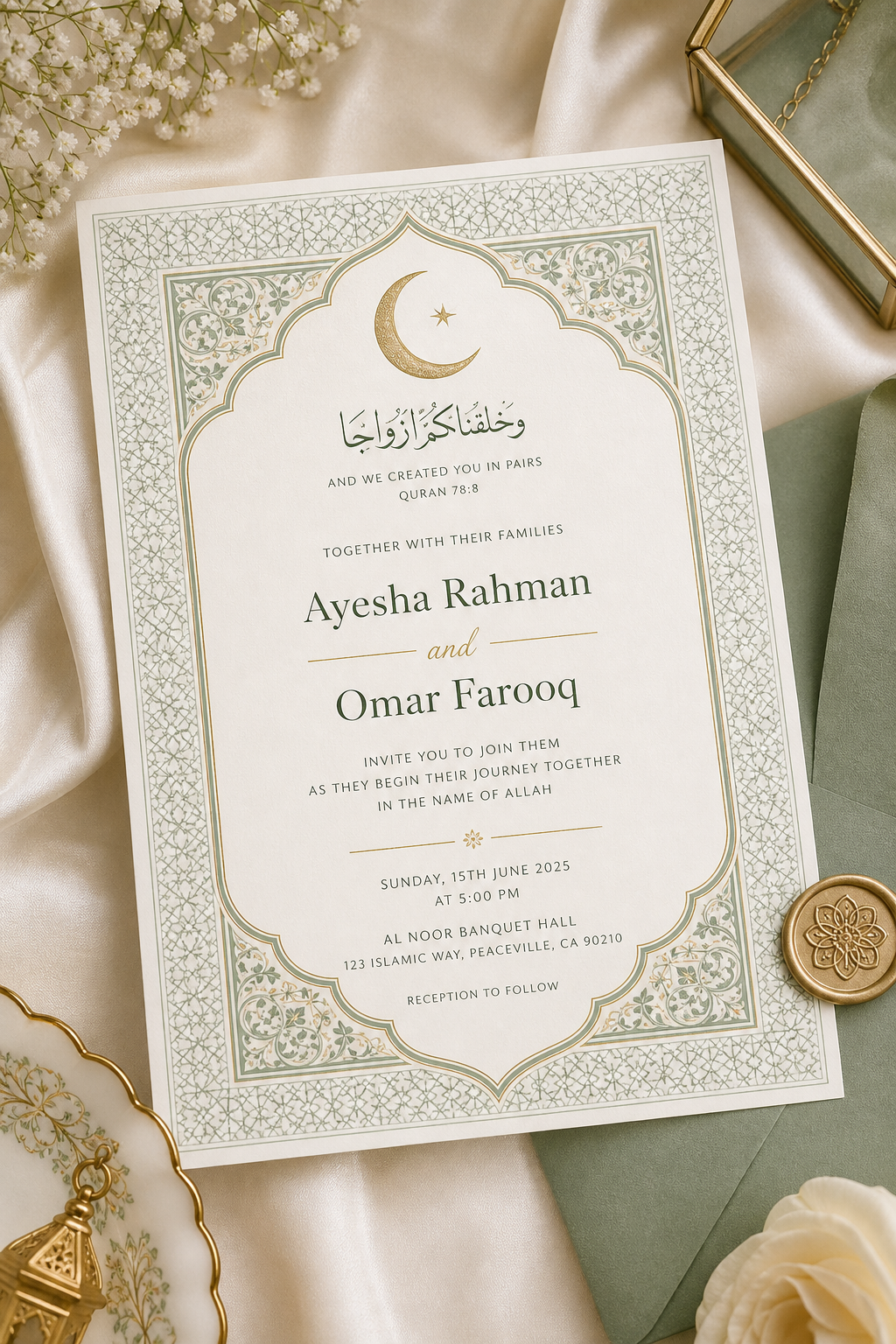
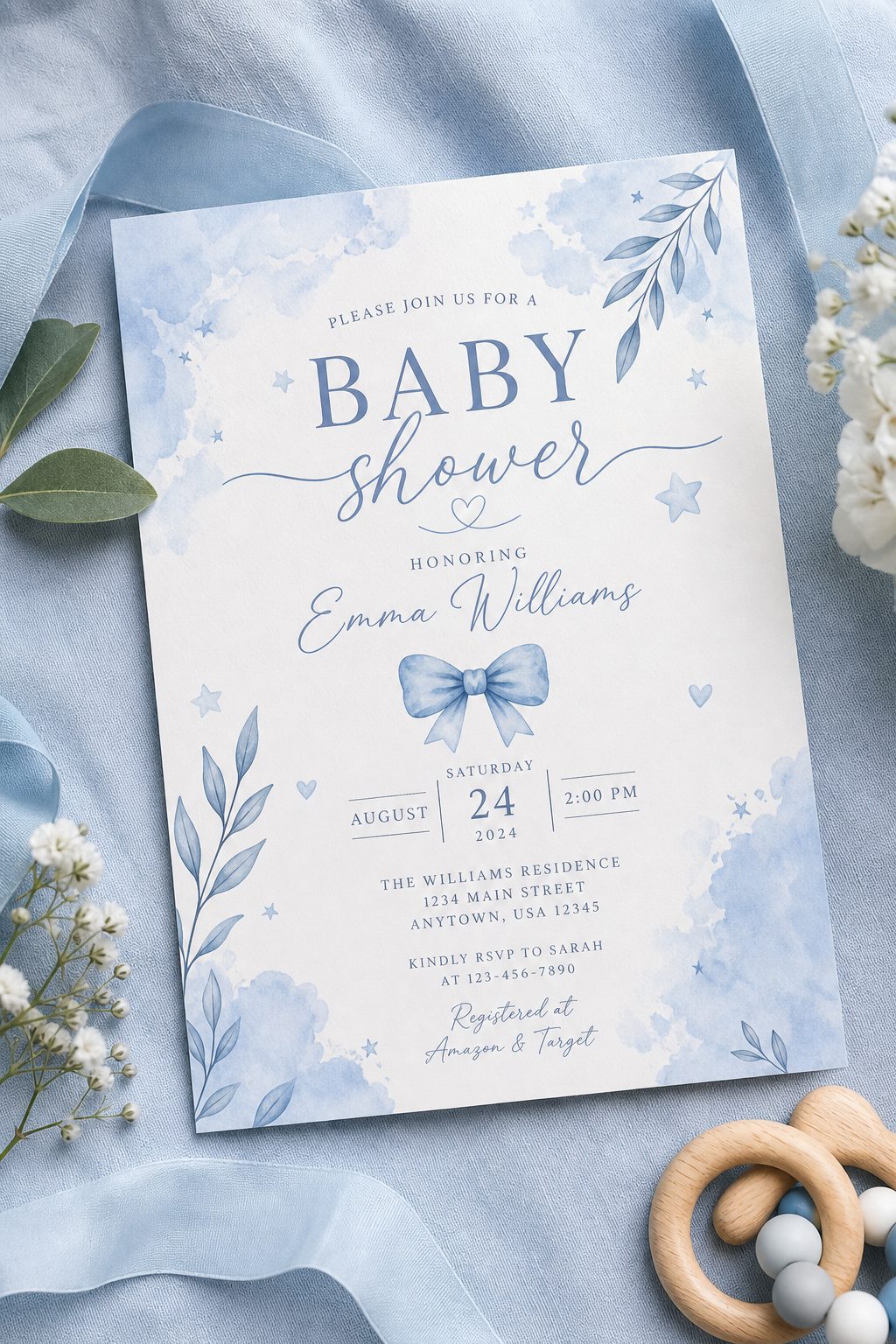
Colour is where a template becomes yours. Select floral accents, bars, or background shapes and open the colour panel. Soft sky blues suit baby showers; olive and sage feel natural for garden weddings; blush and cream read romantic for bridal events; deeper greens and gold accents work beautifully for Islamic wedding stationery. Change colours in small groups rather than one random element at a time.
If the template uses three greens, update all three so the suite still looks intentional. When in doubt, pull a colour from your flowers, table linen, or outfit and sample it with Canva’s picker. Aim for harmony over novelty: a restrained palette photographs better and feels more expensive than a rainbow of unrelated accents. Save your custom colours in Canva’s brand kit if you will edit matching details cards later.
A good edit is quiet. Guests should notice the celebration — not the fact that you redesigned the card.
Export for print and for phones
Most Eden Delight invitations include a standard print size (often around 5×7) and sometimes a mobile-friendly version. For home or print-shop use, download PDF Print with crop marks if offered. For WhatsApp, Instagram, or email, export a high-quality PNG. Always preview on your phone before sending — that is where most guests will open the invite first, often in a noisy chat thread with tiny thumbnails.
If text looks soft, you likely exported too small or compressed the file. Re-download at the highest quality setting. For print shops, ask whether they prefer PDF or JPEG and whether they need a bleed. A one-minute conversation prevents a wasted run of cards. Name your files clearly — EventName-Invitation-Print.pdf and EventName-Invitation-Mobile.png — so you never send the wrong version to a vendor or a group chat.
A simple ten-minute checklist
Duplicate the file. Replace names and logistics. Adjust colours to your palette. Proofread once on desktop and once on mobile. Export PDF for print and PNG for digital. Send a test message to yourself. That rhythm works for nearly every invitation template in the shop — and it keeps celebration planning focused on people, not pixels.
If you feel stuck, step away for two minutes and come back with fresh eyes. Most “design problems” are actually wording problems: a title that is too long, an address that needs a line break, or an RSVP line that tries to explain three methods at once. Simplify the language, protect the layout, and trust the template.